# 快捷键配置
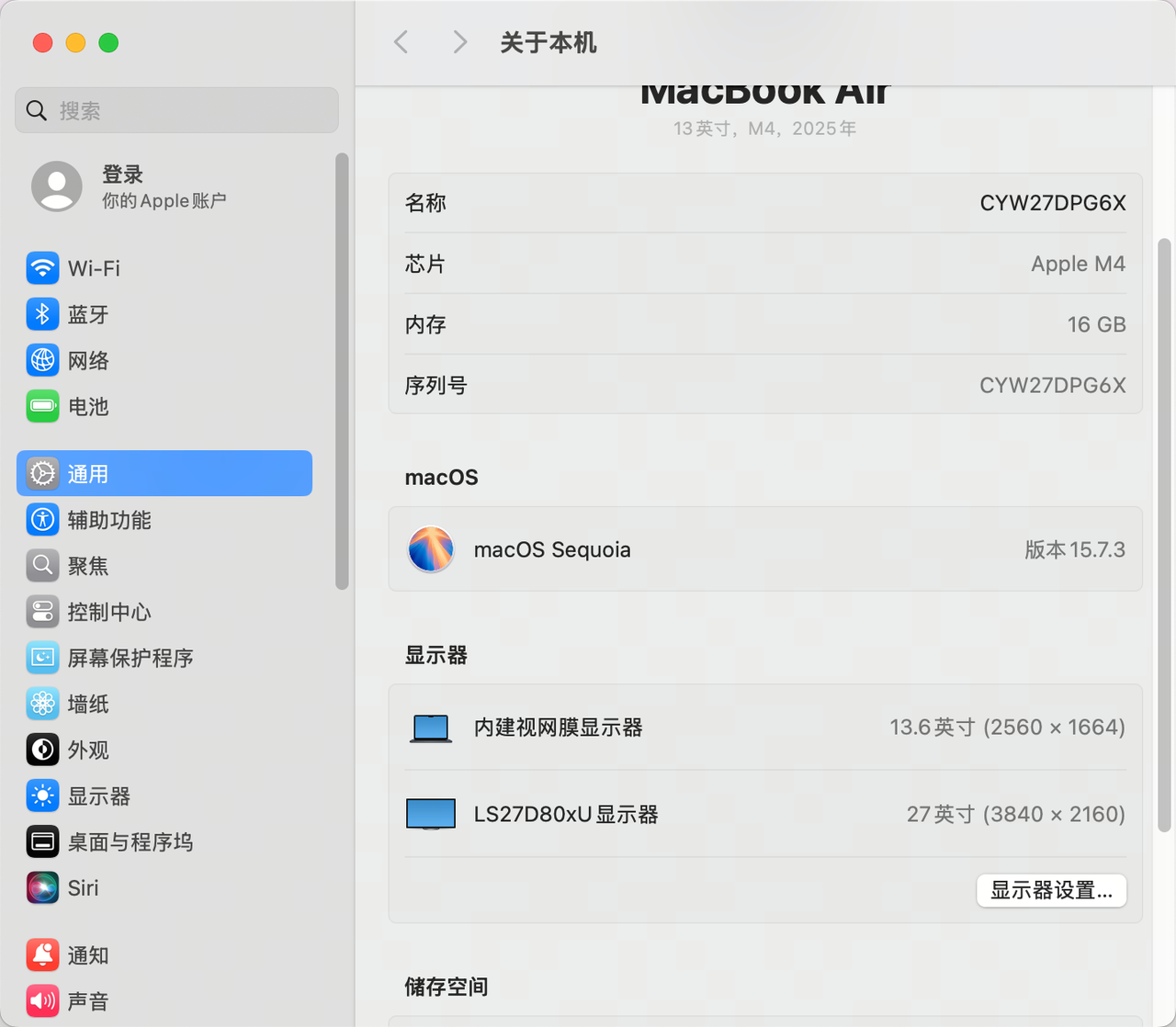
结合我所用 macOS 版本,我在官网下载 Karabiner-Elements 版本 v15.9.0
# 给予权限
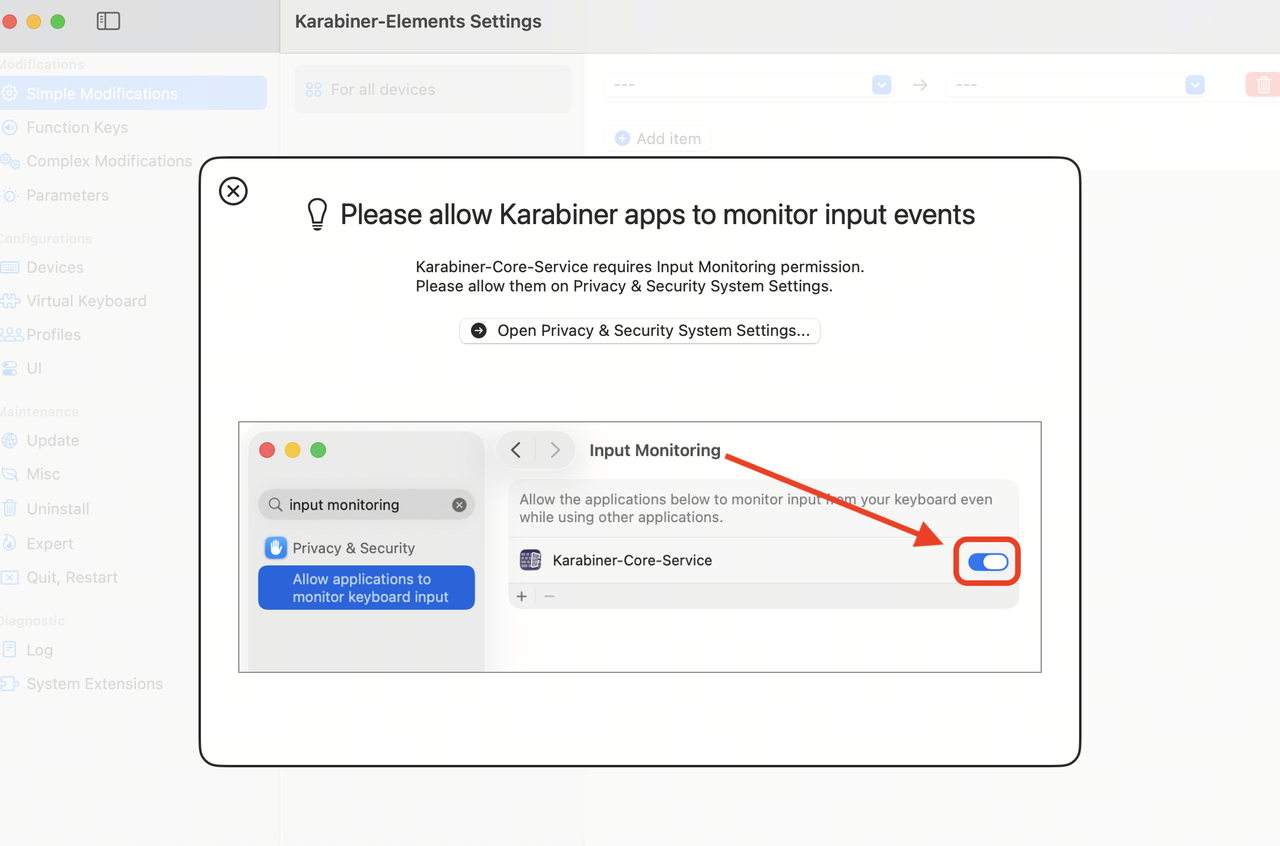
进入软件出现弹窗,因为 Karabiner 需要接管你的键盘输入(这是它能修改快捷键的前提),所以它向 macOS 申请了 “输入监听”(Input Monitoring) 权限。
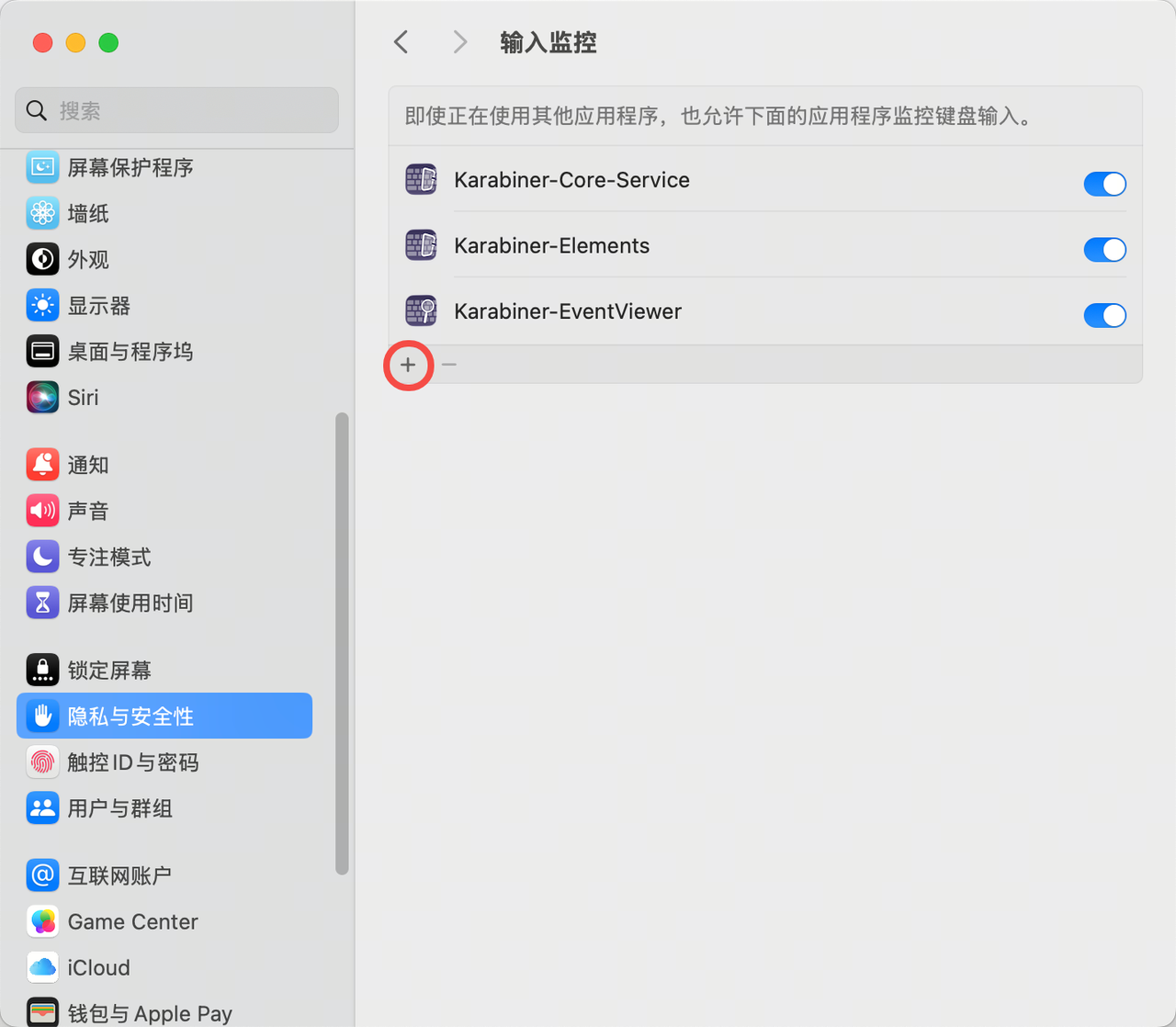
但是,macOS 的安全隐私系统有时候会 “犯傻”:它收到了 Karabiner 的申请,弹出了提示,却忘记把 Karabiner-Core-Service 这个选项自动加到设置列表里,此时需要我们手动加进去:
- 打开 Mac 的 系统设置 -> 隐私与安全性 -> 输入监控(Input Monitoring)
- 点击列表下方的小
+号(系统可能会要求你输入锁屏密码或验证指纹)
-
此时会弹出一个选择文件的窗口。在这个窗口中,直接按下键盘快捷键:
Cmd + Shift + G(前往文件夹)。在弹出的输入框中,复制并粘贴以下路径,然后按回车:/Library/Application Support/org.pqrs/Karabiner-Elements/ -
选择程序
Karabiner-Core-Service,打开,然后开启权限
# 定制化输入习惯
# 输入法切换
- 需求:
- 使得原 mac 的 ctrl + 空格,ctrl+option + 空格没意义
- shift+ctrl 向下切换输入法, shift+ctrl + 空格向上切换
- 自定义规则 json 文件编写
在路径 ~/.config/karabiner/assets/complex_modifications 下,写入 input_switch.json
{
  "title": "Windows习惯:Ctrl+Shift 切换输入法 (反转方向 & 屏蔽原快捷键)",
  "rules": [
    {
      "description": "1. 按下 Ctrl + Shift + 空格 -> 向上切换输入法 (映射为 Ctrl+Space)",
      "manipulators": [
        {
          "type": "basic",
          "from": {
            "key_code": "spacebar",
            "modifiers": {
              "mandatory": [
                "left_control",
                "left_shift"
              ],
              "optional": [
                "caps_lock"
              ]
            }
          },
          "to": [
            {
              "key_code": "spacebar",
              "modifiers": [
                "left_control"
              ]
            }
          ]
        }
      ]
    },
    {
      "description": "2. 单独按下 左Ctrl + 左Shift -> 向下切换输入法 (映射为 Ctrl+Option+Space)",
      "manipulators": [
        {
          "type": "basic",
          "from": {
            "key_code": "left_shift",
            "modifiers": {
              "mandatory": [
                "left_control"
              ],
              "optional": [
                "caps_lock"
              ]
            }
          },
          "to_if_alone": [
            {
              "key_code": "spacebar",
              "modifiers": [
                "left_control",
                "left_option"
              ]
            }
          ]
        },
        {
          "type": "basic",
          "from": {
            "key_code": "left_control",
            "modifiers": {
              "mandatory": [
                "left_shift"
              ],
              "optional": [
                "caps_lock"
              ]
            }
          },
          "to_if_alone": [
            {
              "key_code": "spacebar",
              "modifiers": [
                "left_control",
                "left_option"
              ]
            }
          ]
        }
      ]
    },
    {
      "description": "3. 屏蔽原物理键盘的 Ctrl+空格 和 Ctrl+Option+空格 (使其无意义)",
      "manipulators": [
        {
          "type": "basic",
          "from": {
            "key_code": "spacebar",
            "modifiers": {
              "mandatory": [
                "control",
                "option"
              ],
              "optional": [
                "caps_lock"
              ]
            }
          },
          "to": [
            {
              "key_code": "vk_none"
            }
          ]
        },
        {
          "type": "basic",
          "from": {
            "key_code": "spacebar",
            "modifiers": {
              "mandatory": [
                "control"
              ],
              "optional": [
                "caps_lock"
              ]
            }
          },
          "to": [
            {
              "key_code": "vk_none"
            }
          ]
        }
      ]
    }
  ]
}
# Ctrl 快捷键定制
- 需求
- 按下 Ctrl+C/V/A/S/Z 实现复制 / 粘贴 / 全选 / 保存 / 撤销(在非终端应用中)
- 同上小节路径,编写 custom_shortcuts.json 文件:
{
  "title": "Windows习惯:Ctrl+C/V/A/S/Z 映射为 Cmd+C/V/A/S/Z (排除终端)",
  "rules": [
    {
      "description": "在非终端应用中,按下 Ctrl + C/V/A/S/Z 实现复制/粘贴/全选/保存/撤销",
      "manipulators": [
        {
          "type": "basic",
          "conditions": [
            {
              "type": "frontmost_application_unless",
              "bundle_identifiers": [
                "^com\\.apple\\.Terminal$",
                "^com\\.googlecode\\.iterm2$",
                "^dev\\.warp\\.Warp-Stable$",
                "^io\\.alacritty$",
                "^net\\.kovidgoyal\\.kitty$",
                "^com\\.github\\.wez\\.wezterm$"
              ]
            }
          ],
          "from": {
            "key_code": "c",
            "modifiers": { "mandatory": ["control"], "optional": ["any"] }
          },
          "to": [ { "key_code": "c", "modifiers": ["command"] } ]
        },
        {
          "type": "basic",
          "conditions": [
            {
              "type": "frontmost_application_unless",
              "bundle_identifiers": [
                "^com\\.apple\\.Terminal$",
                "^com\\.googlecode\\.iterm2$",
                "^dev\\.warp\\.Warp-Stable$",
                "^io\\.alacritty$",
                "^net\\.kovidgoyal\\.kitty$",
                "^com\\.github\\.wez\\.wezterm$"
              ]
            }
          ],
          "from": {
            "key_code": "v",
            "modifiers": { "mandatory": ["control"], "optional": ["any"] }
          },
          "to": [ { "key_code": "v", "modifiers": ["command"] } ]
        },
        {
          "type": "basic",
          "conditions": [
            {
              "type": "frontmost_application_unless",
              "bundle_identifiers": [
                "^com\\.apple\\.Terminal$",
                "^com\\.googlecode\\.iterm2$",
                "^dev\\.warp\\.Warp-Stable$",
                "^io\\.alacritty$",
                "^net\\.kovidgoyal\\.kitty$",
                "^com\\.github\\.wez\\.wezterm$"
              ]
            }
          ],
          "from": {
            "key_code": "a",
            "modifiers": { "mandatory": ["control"], "optional": ["any"] }
          },
          "to": [ { "key_code": "a", "modifiers": ["command"] } ]
        },
        {
          "type": "basic",
          "conditions": [
            {
              "type": "frontmost_application_unless",
              "bundle_identifiers": [
                "^com\\.apple\\.Terminal$",
                "^com\\.googlecode\\.iterm2$",
                "^dev\\.warp\\.Warp-Stable$",
                "^io\\.alacritty$",
                "^net\\.kovidgoyal\\.kitty$",
                "^com\\.github\\.wez\\.wezterm$"
              ]
            }
          ],
          "from": {
            "key_code": "s",
            "modifiers": { "mandatory": ["control"], "optional": ["any"] }
          },
          "to": [ { "key_code": "s", "modifiers": ["command"] } ]
        },
        {
          "type": "basic",
          "conditions": [
            {
              "type": "frontmost_application_unless",
              "bundle_identifiers": [
                "^com\\.apple\\.Terminal$",
                "^com\\.googlecode\\.iterm2$",
                "^dev\\.warp\\.Warp-Stable$",
                "^io\\.alacritty$",
                "^net\\.kovidgoyal\\.kitty$",
                "^com\\.github\\.wez\\.wezterm$"
              ]
            }
          ],
          "from": {
            "key_code": "z",
            "modifiers": { "mandatory": ["control"], "optional": ["any"] }
          },
          "to": [ { "key_code": "z", "modifiers": ["command"] } ]
        }
      ]
    }
  ]
}
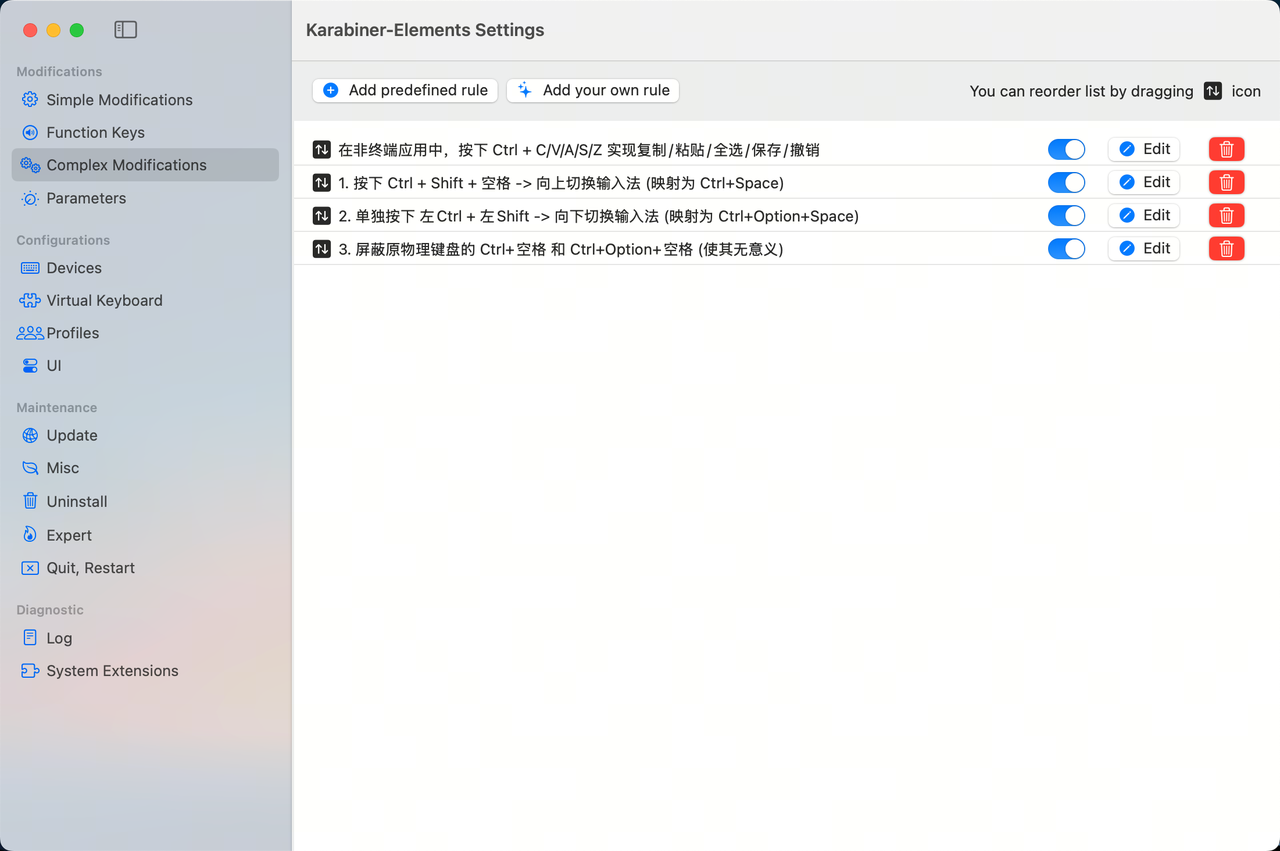
# 结果
# Finder 路径下快速打开终端
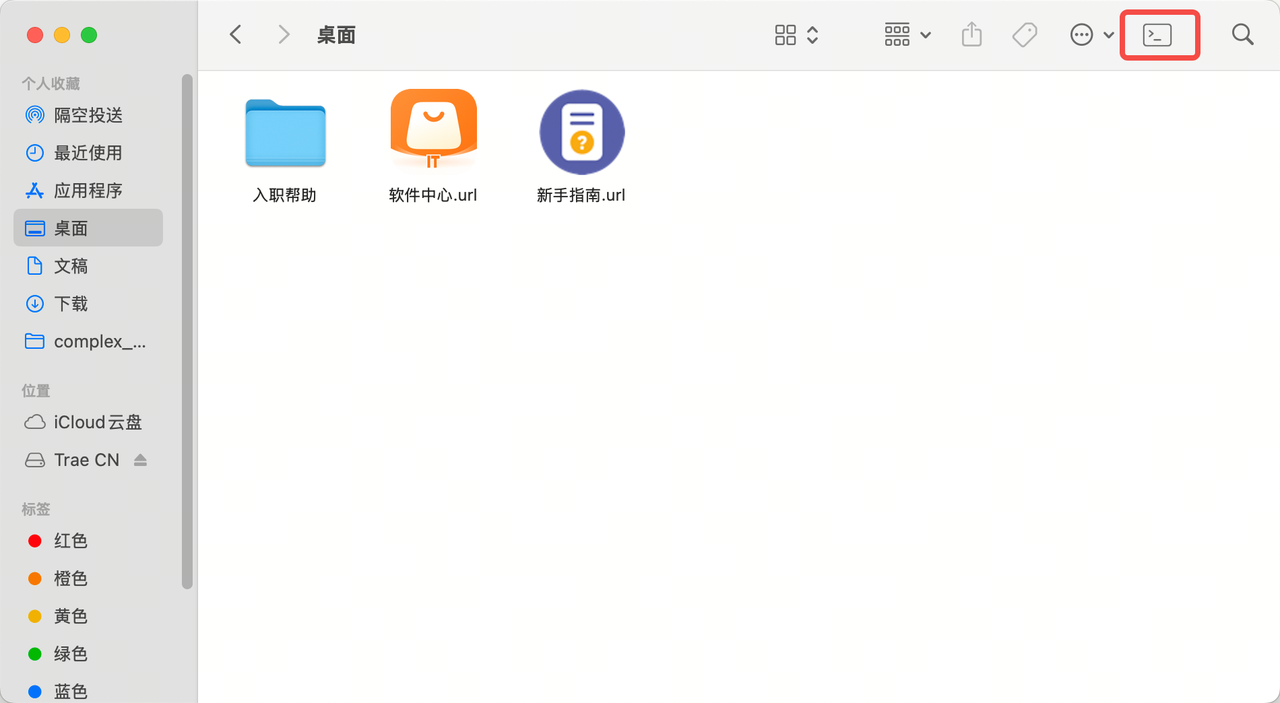
需求:我希望在 mac 的 finder 里,快速在当前位置唤醒终端,让我直接 touch 生成文件
注意:如果希望极简,让按钮出现在 Finder 的上边栏而非整个 mac 屏幕的上边栏边,下载 lite 版!